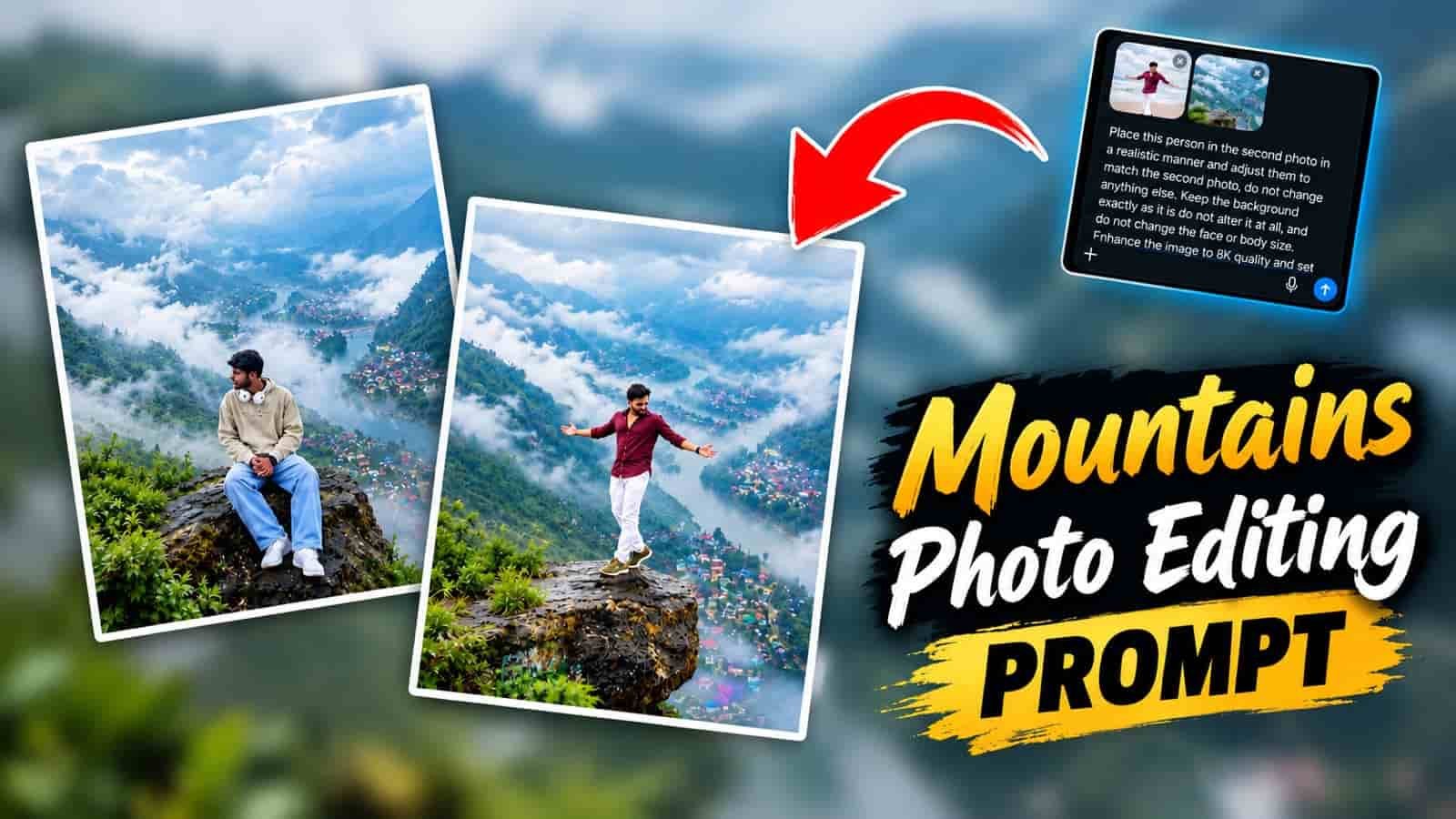
Cloudy Mountain Photo Editing Prompts Guide. In this post, we are going to share with you a very simple and, at the same time, very realistic way to turn your photo into a stunning cinematic mountain Photo Editing with the use of AI.
Guys, if what you are looking for is a natural mountain setting with soft clouds, realistic fog, moody light, and a pro travel photo look, this prompt is for you. This Cinematic Cloudy Mountain Photo Editing Prompt is also very good for beginners, Instagrammers, YouTubers, and anyone who is into playing around with AI in photo editing. What we have here is that you are able to describe the background, atmosphere, lighting, and overall style in one prompt, which at the same time will keep your original face and look natural.
The process is simple. Upload your photo to ChatGPT or Gemini, paste the ready prompt, generate the edit, check the preview, and make a small tweak if required. So, please check out this full post for a better understanding.
What Is a Cloudy Mountain Photo Editing Prompt?
A cloudy mountain photo editing prompt is a text-based instruction set that you input into an image editing AI.
As opposed to spending time cutting a subject out of one photo and into another, or finding a mountain landscape to go with a person, you simply describe what you want in the end result. What you can do is describe things like a mountain setting, the look of a cloudy sky, how the light falls, what the natural shadows look like at a certain time of day, a great color grade for a movie look, how far away things should be in terms of depth, and very realistic-looking lighting.
Also, the key is the fact that the AI works with the photo you have provided rather than creating a full-scale digital remake of it from scratch. That’s what helps to preserve the feel of your original photo.
Why Is This Mountain Edit Popular?
Mountain photos present a great visual appeal, which they get from a mix of landscapes, clouds, depth, and natural atmosphere.
We see that adding a touch of cinematic quality to the cloud cover increases the drama in the image without going over into fantasy.
Also, soft fog may be used to put the subject at a distance from the mountains.
At present AI for mountain photos is mostly focused on real world face details, dramatic cloud play, fog, lighting, travel aspects, and vertical social media formats. But just putting in the words “cinematic mountain” isn’t enough.
Also, we need to give the AI info on identity, lighting direction, fog density, background depth, and level of realism.
What Makes a Mountain Edit Look Realistic?
- Face: Keep the original look.
- Lighting: Go for that of a cloudy natural day.
- Fog: Soft and atmospheric rather of full coverage.
- Mountains: Use a real looking depth and natural textures.
- Shadows: Include very light environmental ones.
- Colors: Go for a toned down cinema look instead of over saturated.
- Composition: Position the subject in a natural way in the scene.
- Details: Do away with artificial skin smoothness and not so natural textures.
This set of details is what makes a Realistic Mountain Fog Photo Editing Prompt more useful than a short note like “put me in the mountains.
Best Photo to Use Before Editing
Your starting photo will greatly influence the final result. For the best Mountain View Cinematic Photo Editing results, choose a clear photo that shows your face and which is well exposed. Also note that we recommend these photos
- Conditions: Use a sharp high resolution photo.
- Keep your face very visible. Stay away from very dark images.
- Do not use heavy beauty filters.
- Go for a natural pose.
- See to it that important body parts are not awkwardly cropped.
- Also avoid photos with severe motion blur.
- A simple background will make AI editing go more smoothly.
- A regular selfie or portrait will do.
- You do not need a professional camera photo.
- Cinematic Cloudy Mountain Photo Editing Prompt.
Here is the primary ready to use prompt for this article:.
How to Use the Prompt in Gemini or ChatGPT
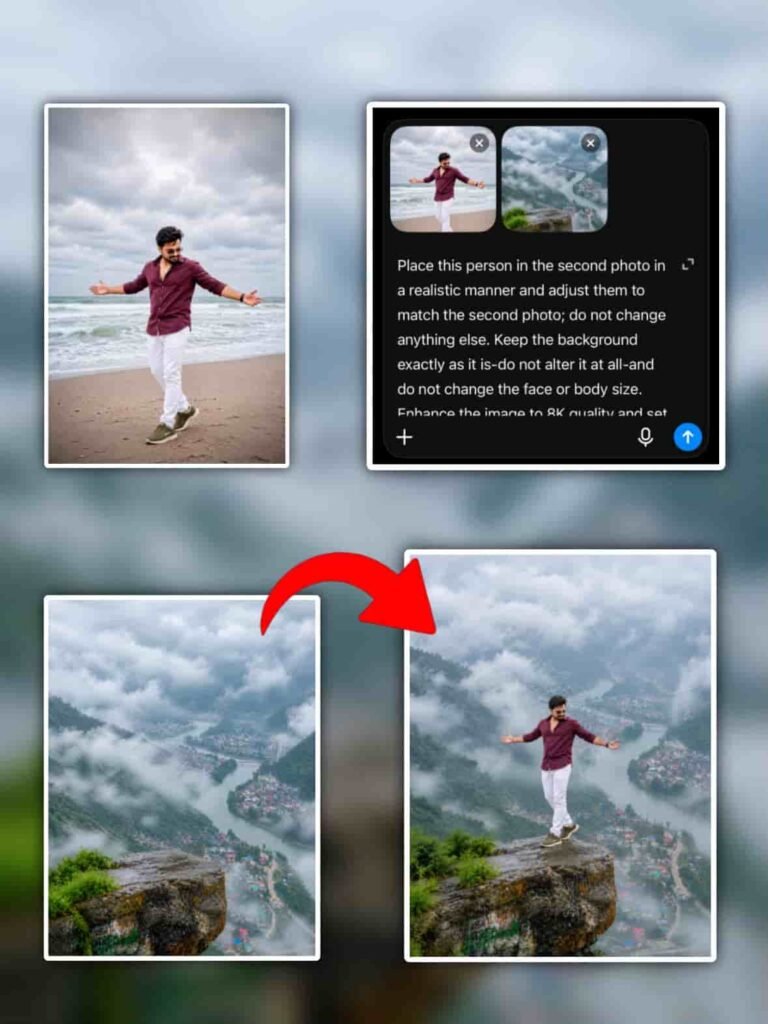
Just Follow these simple steps:
Step 1: Copy The Prompt
Copy the Cinematic Cloudy Mountain Photo Editing Prompt from this article.
Step 2: Open Your AI Image Creation Tool
Like Gemini or ChatGPT.
Step 3: Upload Your Photo
Upload a clear portrait or selfie you want to edit
Step 4: Paste the Prompt
Step 5: Generate the Image
DOWNLOAD THIS BACKGROUND⤵️
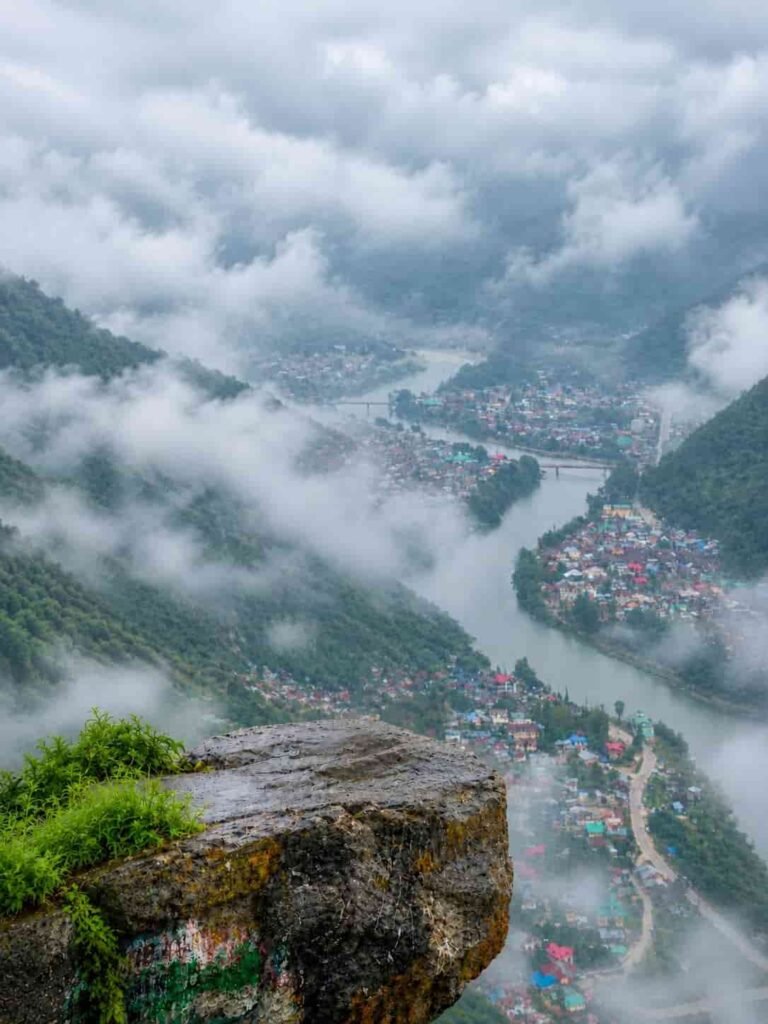
For Standing Pose⤵️
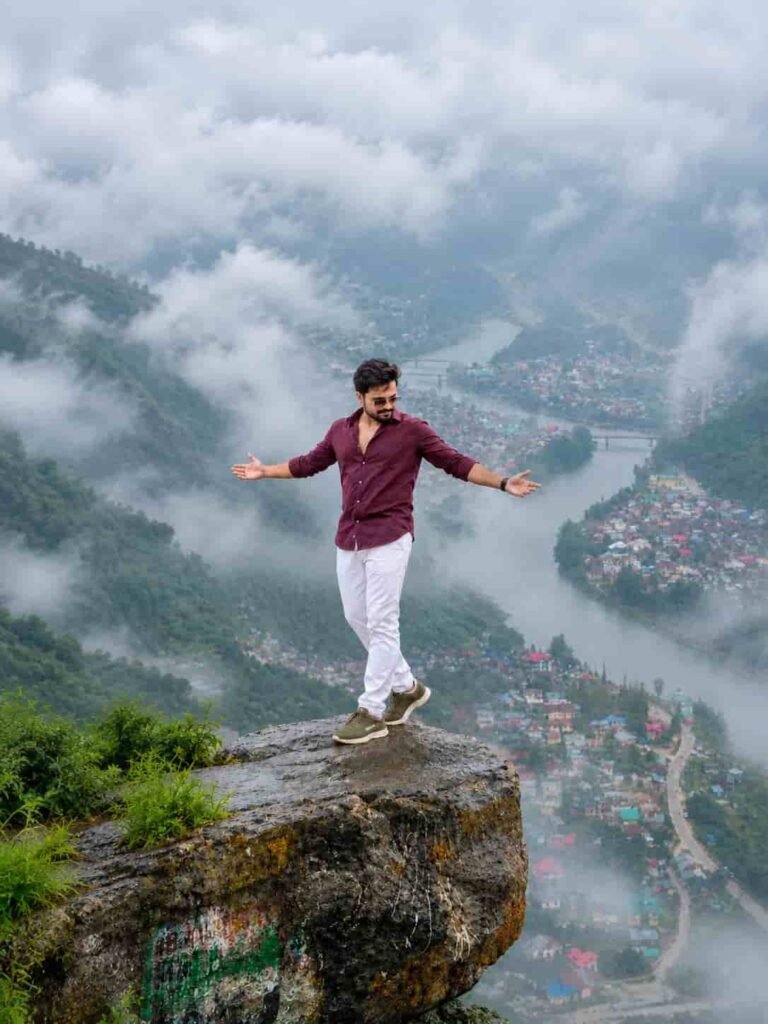
Place this person in the second photo in a realistic manner and adjust them to match the second photo; do not change anything else. Keep the background exactly as it is-do not alter it at all-and do not change the face or body size. Enhance the image to 8K quality and set the aspect ratio to 3:4. Background not change and fog add 20% and Background size bada do
For Sitting Pose⤵️
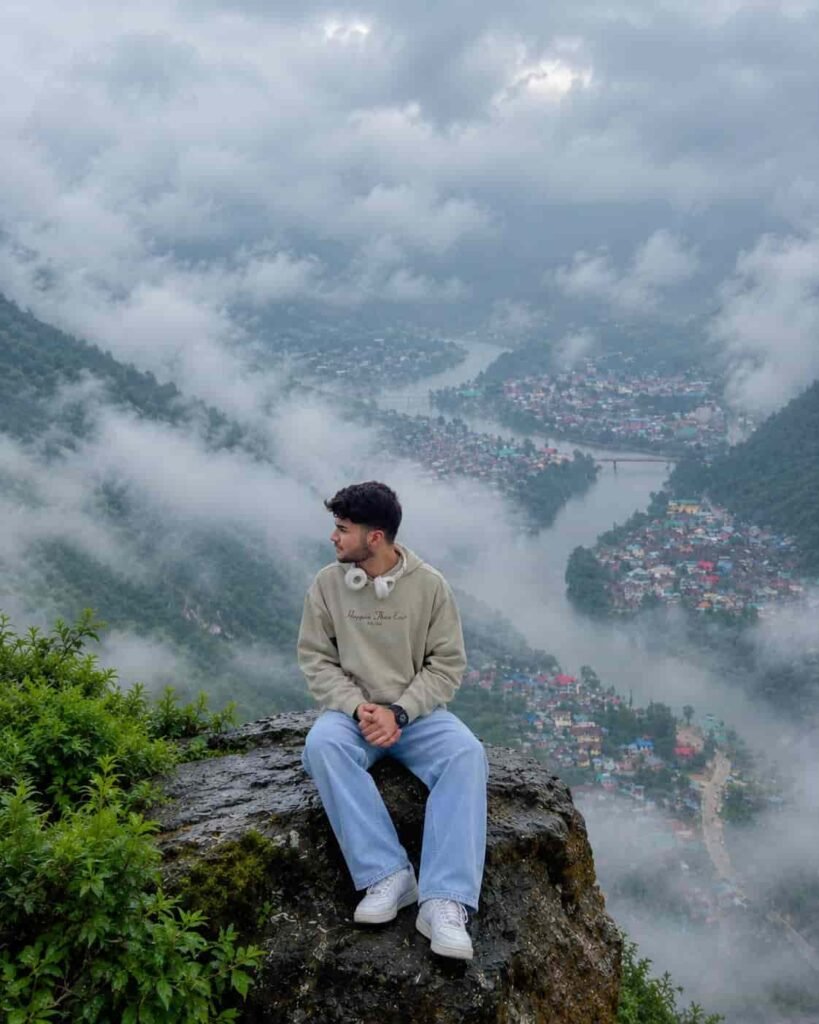
Second pic background in my photo Full HD 8k quality boy ko same poses or same face ke sath stone baitha do monsoon foggy background ke sath
Best Aspect Ratio for Instagram And other Social Media
Use a 4:5 crop for an Instagram-style post: it gives the subject room without cutting away the mountain backdrop. For a Reel or Short cover, switch to 9:16. Best option.
Conclusion
The Cloudy Mountain Photo Edit feature is which you take a regular portrait and transform it into a very realistic mountain setting with clouds. AI does the work of setting the scene, the atmospheric lighting, the depth, and the background so you don’t have to create anything from scratch. For best results the person should still look very much like them self and the lighting should match the environment. We suggest you keep the fog subtle, bring out the mountain details, and do small touch ups where it may look off. Start with the prompt we have provided, upload a clear photo, generate the image and then go in and make the needed changes. Also try out the Trend Guruzi prompt with your own photos and create your own cloudy mountain edit today.